Search Marquis usually shows up as a browser hijacker that changes your search engine or keeps redirecting searches. If you are seeing searchmarquis.com, Search Baron, Bing redirects you did not set, or a strange "Managed by your organization" message in Chrome on a personal Mac, the problem is usually not just a browser setting. It is often a mix of unwanted extensions, suspicious profiles, startup items, or bundled apps.
The good news is that you can usually remove Search Marquis without wiping your Mac. The safest approach is to work in order: remove suspicious login items and apps, delete unknown profiles, clean Safari and Chrome, reset search settings, and then restart your Mac.
This guide walks through the cleanup step by step.
Quick Answer
If you want the fastest version, do this in order:
- Remove suspicious login items and recently installed apps.
- Remove unknown device management or configuration profiles.
- Remove suspicious Safari and Chrome extensions.
- Reset your search engine and browser settings.
- Restart your Mac.
- Run a reputable anti-malware scan if the redirects keep coming back.
If you skip the profile, login item, or extension cleanup, Search Marquis often returns.
sbb-itb-bf47c9b
What Search Marquis Is
Search Marquis is usually classified as a browser hijacker or potentially unwanted program. It often arrives through bundled downloads, fake updates, or software installers that add extra components without making the change obvious.
Common signs include:
- your browser redirects through searchmarquis.com, Search Baron, or other strange domains
- your default search engine changes without your permission
- Safari or Chrome opens an unwanted homepage or new tab page
- Chrome says Managed by your organization even though this is your personal Mac
- the problem comes back after you change search settings manually
The reason it is annoying to remove is that the visible search redirect is often only one symptom. The actual persistence usually comes from an extension, a profile, a login item, or a suspicious app still installed on the Mac.
Before You Start
Before removing anything:
- save work and close your browsers
- make a note of any legitimate work or school profiles installed on your Mac
- do not remove a company or school management profile unless you are sure it does not belong there
If your Mac is managed by work or school, check with your admin before deleting profiles or managed settings.
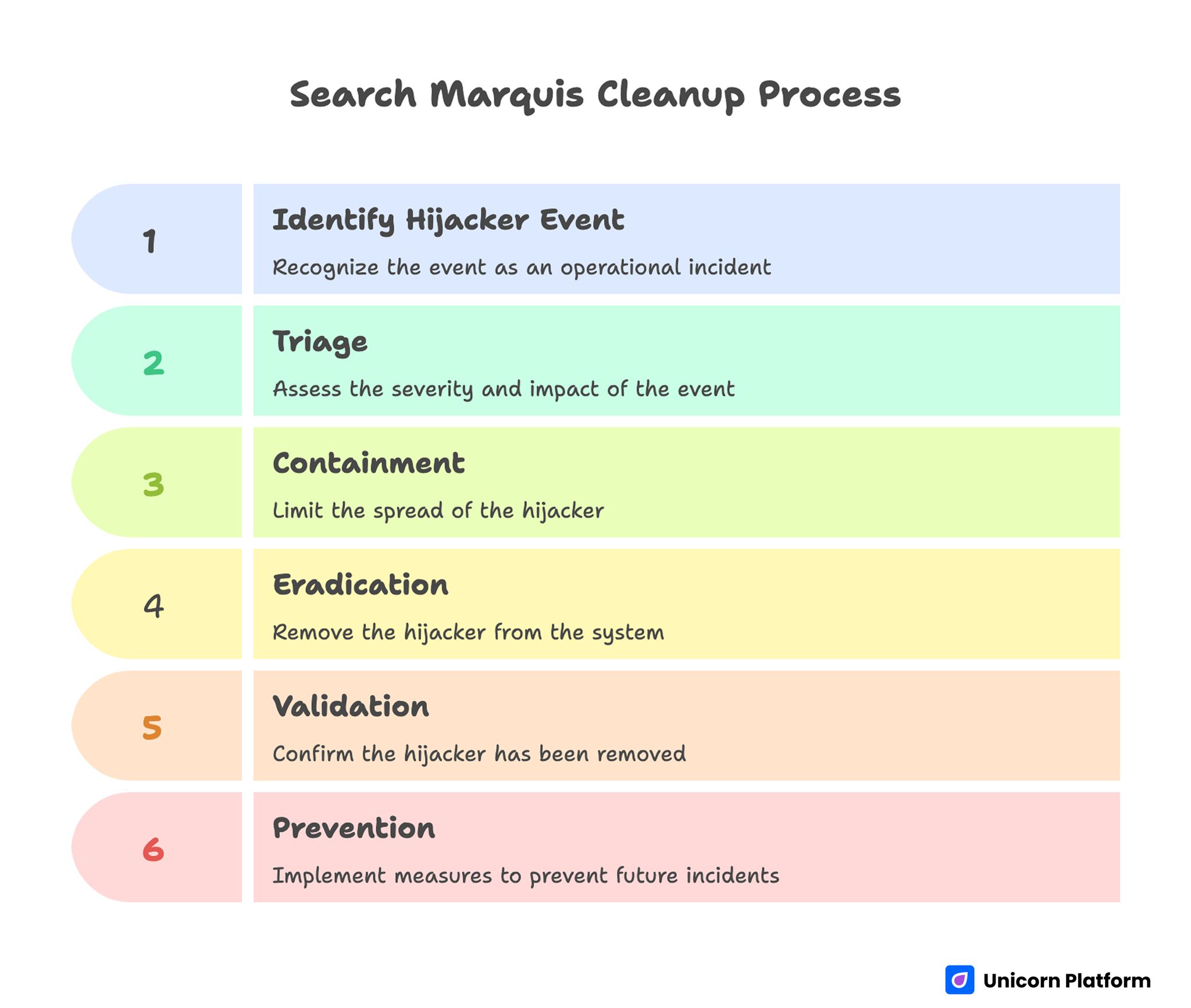
Search Marquis Cleanup Process
Step 1: Remove Suspicious Login Items and Background Items
Search Marquis often sticks around because something launches automatically at startup.
On modern macOS versions:
- Open Apple menu > System Settings.
- Click General.
- Click Login Items & Extensions.
- Look through Open at Login and background items.
- Remove anything unfamiliar, recently added, or clearly unrelated to apps you trust.
On older macOS versions, the path may be:
- System Preferences > Users & Groups > Login Items
What to look for:
- apps with generic or random-looking names
- tools you do not remember installing
- anything added right before the redirects started
After removing suspicious items, move on to the next step instead of stopping here. Login items are often only one part of the problem.
Step 2: Remove Unknown Profiles From Your Mac
This is one of the most important steps. Search Marquis and similar hijackers sometimes install a profile that keeps browser settings locked or re-applies bad settings after you change them.
On macOS 13 or later:
- Open Apple menu > System Settings.
- Click General.
- Click Device Management.
- If you see a profile you do not recognize, select it.
- Remove it.
On macOS 12 or earlier:
- Open Apple menu > System Preferences.
- Click Profiles.
- Select any unknown profile and remove it.
If you do not see Profiles or Device Management, that usually means no profiles are installed.
Be careful here:
- remove unknown or obviously suspicious profiles
- do not remove a legitimate company, school, or VPN profile unless you know it is not supposed to be there
Step 3: Remove Suspicious Apps From Applications
A browser hijacker often comes from a bundled app that is still installed.
- Open Finder.
- Go to Applications.
- Sort by recently added apps if that helps.
- Look for anything unfamiliar, suspicious, or installed around the time the redirects started.
- Move those apps to the Trash.
- Empty the Trash when you are done.
If you are unsure about an app:
- search its name first
- check whether you installed it on purpose
- if it belongs to known software you use, leave it alone
Step 4: Remove Search Marquis From Safari
Now clean Safari directly.
Remove suspicious Safari extensions
- Open Safari.
- Go to Safari > Settings or Safari > Preferences.
- Click Extensions.
- Uninstall any extension you do not recognize or no longer trust.
Apple’s Safari guidance is simple here: if you cannot tell what an extension does or do not expect to use it again, uninstall it.
Clear Safari website data and history
- In Safari, go to Safari > Settings.
- Click Privacy.
- Click Manage Website Data.
- Remove suspicious website data or choose Remove All if you want a cleaner reset.
- Then go to History > Clear History and clear it.
Check your homepage and search settings
After removing extensions and data:
- check your homepage setting
- make sure Safari is using the search engine you actually want
- reopen Safari and test a search
If the hijack comes back immediately, go back and recheck profiles and login items.
Step 5: Remove Search Marquis From Chrome
Chrome usually needs its own cleanup because hijackers often install an extension or policy there.
Remove suspicious Chrome extensions
- Open Chrome.
- Click the three-dot menu.
- Go to Extensions > Manage Extensions.
- Remove any extension you did not install or do not trust.
Google’s guidance is useful here: if an extension changed your homepage, new tab page, or default search engine, removing it should return those settings to normal.
Check for extension-controlled settings
- In Chrome, open Settings.
- Look for any message saying an extension is controlling your settings.
- Remove the related extension if it is not legitimate.
Reset Chrome search and browser settings
- Open Chrome > Settings.
- Go to Search engine and Manage search engines and site search.
- Remove unknown search engines.
- Set your preferred engine as default.
If Chrome still behaves strangely:
- Go to Settings > Reset settings.
- Choose Restore settings to their original defaults.
- Confirm the reset.
Chrome says this reset will restore things like your default search engine, homepage, startup pages, and disabled extensions, but it will not delete your bookmarks or passwords.
If Chrome says “Managed by your organization”
On a personal Mac, that message can be a warning sign that a policy or profile is forcing settings.
If you see it:
- go back to Device Management or Profiles
- remove suspicious profiles
- check extensions again
- restart Chrome after cleanup
Step 6: Reset Search Settings and Test Both Browsers
At this point, test your Mac cleanly.
- Restart your Mac.
- Open Safari and try a search.
- Open Chrome and try a search.
- Confirm you are no longer being redirected through Search Marquis, Search Baron, or another strange domain.
If one browser is clean and the other is not, keep troubleshooting only the affected browser.
If both browsers still redirect, the most likely causes are:
- a missed profile
- a suspicious app still installed
- a remaining extension
- a background item or helper app still loading at startup
Step 7: Run a Reputable Anti-Malware Scan if Needed
If the redirects still come back, run a reputable Mac anti-malware scan. This helps catch hidden components that are harder to spot manually.
Use a well-known security tool, update it first, and scan the Mac after you finish the manual cleanup steps above.
This is especially useful if:
- the problem keeps returning after restart
- you removed the obvious settings but the redirect remains
- you suspect the Mac has more than one unwanted program installed
Prevention Checklist
Once you remove Search Marquis, do these things to reduce the chance of it returning:
- only download apps from trusted sources
- avoid bundled installers and fake update prompts
- review every install screen instead of clicking through quickly
- check Safari and Chrome extensions regularly
- remove apps you no longer use
- keep macOS and your browser up to date
- be careful with browser notifications, pop-ups, and “clean your Mac” ads
If you use Chrome, pay extra attention to any message saying an extension or organization is controlling browser settings.
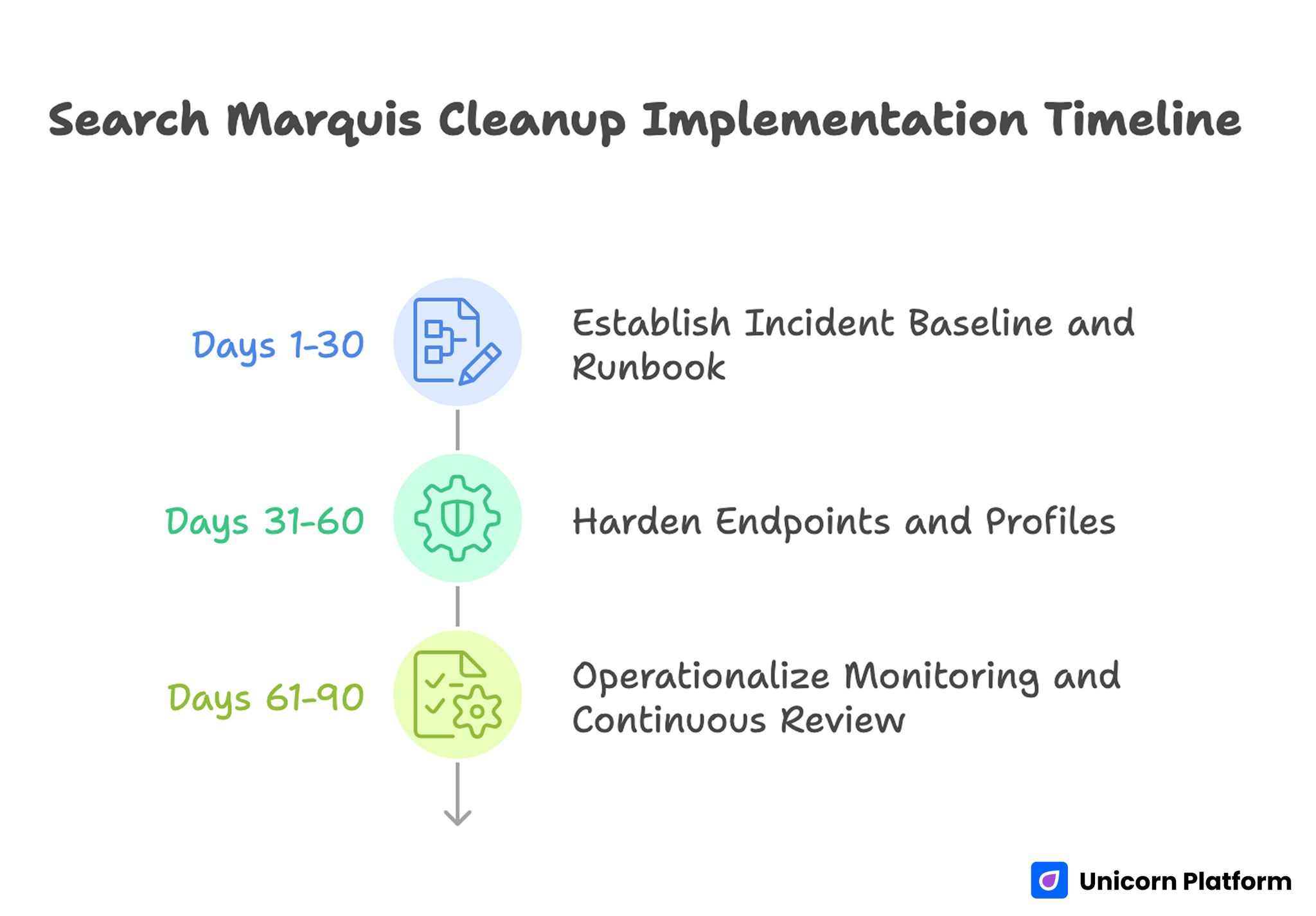
Search Marquis Implementation Timeline
Common Mistakes During Cleanup
Mistake 1: only changing the search engine
Fix: remove the extension, profile, app, or login item causing the change.
Mistake 2: skipping profiles because you do not normally use them
Fix: always check Device Management or Profiles. A hijacker may use a profile even if you never set one up yourself.
Mistake 3: removing nothing from startup or Applications
Fix: check what was installed or added around the same time the redirect started.
Mistake 4: cleaning Safari but not Chrome, or Chrome but not Safari
Fix: clean every affected browser separately.
Mistake 5: ignoring repeat infections
Fix: if the hijack comes back after restart, scan the Mac for leftover malware or bundled software.
FAQ: How to Remove Search Marquis from Mac
Is Search Marquis a virus on Mac?
It is usually described as a browser hijacker or potentially unwanted program rather than a traditional virus, but it is still something you should remove.
Why does Search Marquis keep coming back?
Usually because a profile, extension, app, or login item is still installed and keeps reapplying the bad settings.
Does Search Marquis affect Safari and Chrome?
Yes. It often affects Safari and Chrome, and some variants can also affect Firefox.
How do I remove Search Marquis from Safari?
Remove suspicious Safari extensions, clear website data and history, check your search settings, and make sure no bad profile is reinstalling the problem.
How do I remove Search Marquis from Chrome on Mac?
Remove suspicious extensions, check for extension-controlled settings, clean your search engine list, and reset Chrome settings if needed.
What if I do not see Profiles or Device Management on my Mac?
That usually means there are no profiles installed, so you can move on to the other cleanup steps.
Is the “Managed by your organization” message in Chrome always malware?
No. On a work or school Mac it can be normal. On a personal Mac, especially with Search Marquis symptoms, it can be a sign that a profile or extension is controlling Chrome.
Should I reset my browser before removing extensions and profiles?
Usually no. Remove the underlying cause first. Otherwise the hijacker may just change the settings again.
Do I need antivirus to remove Search Marquis?
Not always. Many cases can be removed manually. But a reputable anti-malware scan is useful if the redirects keep returning.
Can Search Marquis steal data?
Browser hijackers mainly change browsing behavior and redirect traffic, but they can also create privacy and security risks, so it is better to remove them quickly.
Final Takeaway
Search Marquis is annoying because it rarely acts like one simple browser setting problem. The redirect is usually only the visible part. To remove it properly, you need to clean the Mac itself, then clean Safari and Chrome, then check whether the settings stay fixed after restart.
If you follow the cleanup in order, most infections become much easier to remove: login items, profiles, apps, extensions, search settings, restart, then malware scan if needed. That order is what gives this page a much better chance to solve the real problem instead of only hiding the symptom.
Related Blog Posts
- HIPAA-Compliant Website Builders in 2026: A Practical Selection and Implementation Guide
- Clear Website Data on iPhone: A Practical Guide for Faster, Cleaner Browsing
- Digital Accessibility Operations in 2026: A Startup Playbook for Inclusive Growth and Trust
- Warehouse-to-Web Integration in 2026: A Practical Reliability Playbook for Commerce Teams